Reflecting images on surfaces with Inkscape and GIMP
In the comments to my post from yesterday about creating shiny buttons with Inkscape I got asked about "simple howto about how to create planes with reflections of existing objects". Does someone think I can resist?
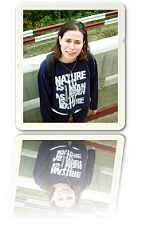
I wrote a simple howto about this effect for both Inkscape and GIMP ![[EN]](http://nicubunu.ro/gfx/flags/en.png) . And for those who like it this way, there is also a Romanian translation
. And for those who like it this way, there is also a Romanian translation ![[RO]](http://nicubunu.ro/gfx/flags/ro.png) .
.


 Posts
Posts


Wow, awesome! Thanks very much, I always wondered how to do such things :)
ReplyDeleteI start to love Inkscape (and Gimp) just by reading your tutorials. Before, I've never been able to do something nice at all. Keep that good work up :)
ReplyDeleteliquidat, I am always happy to help!
ReplyDeletered, it makes my day brighter to see such positive feedback, thanks!
I love it! And I also hope for some other great inkscape tips...
ReplyDeleteUps! There is one awesome trick I didn't know about, is possible to use a gradient as a mask to get progressive transparency for very complex objects.
ReplyDeleteI updated the tutorial and blogged about this neat trick.
Never knew Inkscape can do that! Thank you for solving my problem and teaching me one more small piece of useful knowledge!
ReplyDeleteGreat, very easy to follow tutorial. Just trying reflection for my blog logo. Thanks very much!
ReplyDeleteHi Nicu, thanks for the tutorial and all the other ones you have done for Inkscape. You seem to be holding up most of the sky here.
ReplyDeleteI have learnt a lot and figured one extra thing (standing on the shoulders of giants!):
I always think the reflected image should have some perspective, not just on your examples but in general on these web 2.0 type titles so I figured out how to do this in Inkscape. You probably know but I have put it on my blog at http://blog.beara.ie/?p=343 for others
@Dave: that link seems to be broken currently...
ReplyDeleteUmm, yes it seems to be mis behaving alright. Thanks for the headsup. I can access it from the url directly but it does not appear on the front page... it's a mystery....
ReplyDeleteThe tips entry at http://blog.beara.ie/?p=343 seems to be working again now.
ReplyDeleteHello There, I am a newbie to Gimp,I am still downloading tutorials. I just want to say that your how to is very easy to understand and I think you should put some of your work on this site:www.instructables.com there are quite a few fans of gimp who use the photography section.It is were I found out all about this software, re:after veiwing a topic subject showing you how to put a 3D effect on to a photograph.I think with your skill you could quite easily take it to another level...Thanks again for unselfishly putting your work on the net, so that people like myself can learn from it.
ReplyDeletePaul
I got stuck at the part that says 'make a duplicate and place it under the original image'. How do I do that?
ReplyDeleteRight click on the object and select "Duplicate" from the context menu (or press Ctrl + D or use Edit > Duplicate). Then with the duplicate selected move it under the other object by using the "lower selection one step" icon from the toolbar (or press Page Down or use Object > Lower)
ReplyDeleteHi, my name is Ever, from Costa Rica. THANK YOU FOR YOUR TUTORIALS. :-)
ReplyDeleteThanks for sharing this information - I was fooling around in GIMP with the same idea but your results are much better.
ReplyDeleteFabulous, clear and great! I'm learning a lot from your tutorials.
ReplyDeleteI'm using Inkscape 0.48 on Kubuntu. To get the gradient rectangle to create a mask, I had to use a gray shade. Black resulted in extremely pale or invisible shading at the moment of applying the mask.
Thanks again.
Hi, thanks for posting the tutorial. There's an even simpler way to accomplish this in Inkscape if you use its built-in tools:
ReplyDelete1. Create a vector shape or text object
2. Add filters (optional)
3. Make an inverse duplicate and move it down
4. In Fill properties, change from Flat Color to Linear Gradient
5. Change the gradient direction to vertical by dragging the handles
Cheers,
Tom
Nice, thanks!
ReplyDeleteA small suggestion to be tried: a little bit of blur (found in the "fill and stroke" tab) to the reflection sometimes works nicely (about 1-2% in my try). Depends on the intent and the object, but it's something to think about to make it look more realistic on some "surfaces".
Keep up the good work!
that's a good suggestion, thanks!
DeleteThank you for the nice tutorial. In Gimp you can also to use "Perspective Reflection" script for automatic work.
ReplyDeleteUnfortunately all the tutorials and scripts works only for very simple line- mirroring.
The really nice effect is to do real mirroring of the object. As if you place an object on a mirror. Then you do not have reflection at the end of the mirror (bottom line of the picture) but around the object - object is placed directly on the miror (similar to mask).
My question therefore is: is someone able to do with Gimp this efect of real mirroring (to mirror masked object)?
Thank you for help.
Jan.
Addition: I'd like to add a picture as example, but do not how...
Deleteyou may do it with some more work, but it will never be perfect: using a real mirror you will have in the final image some parts of the object which aren't available in your starting picture.
Delete